
AI presentation maker for teachers: lesson slides in minutes
Describe the lesson in your own words and pick the subject and grade. AI suggests an outline, builds slides with speaker notes and gives you a .pptx file.
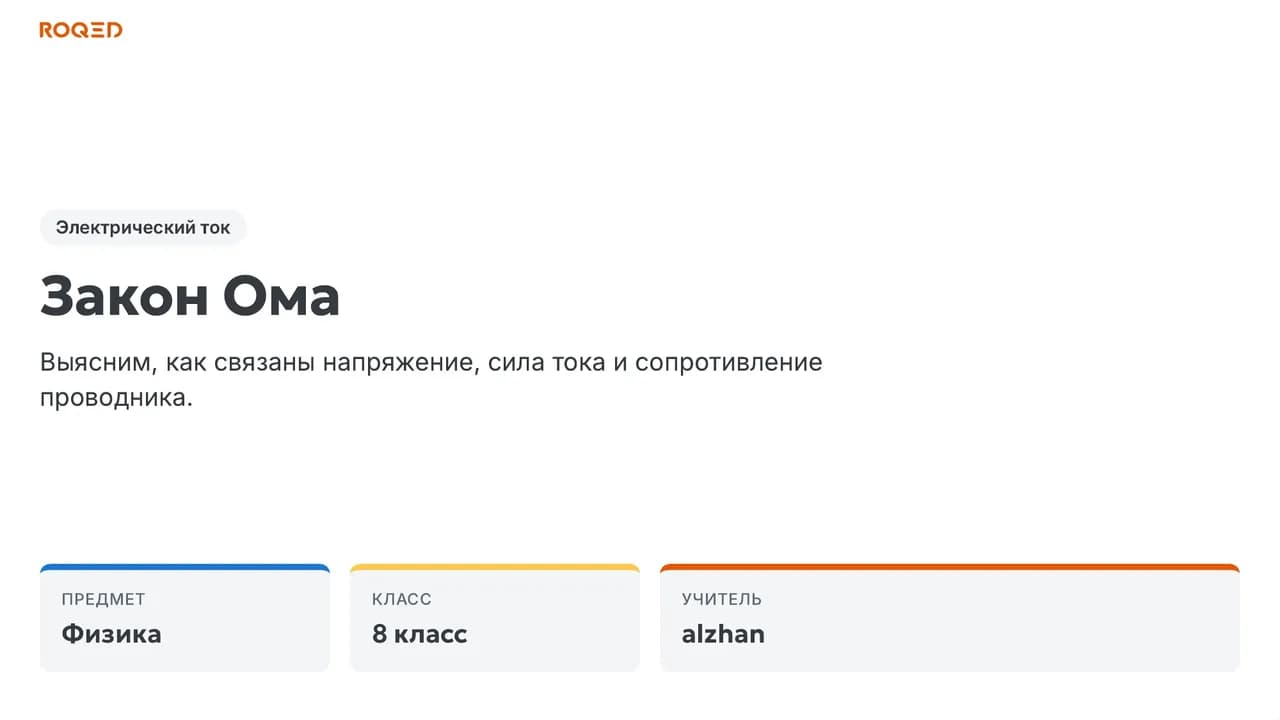
Sample: «Закон Ома» (Ohm’s law), Physics, Grade 8, in Russian
8 slides, made in ROQED AI
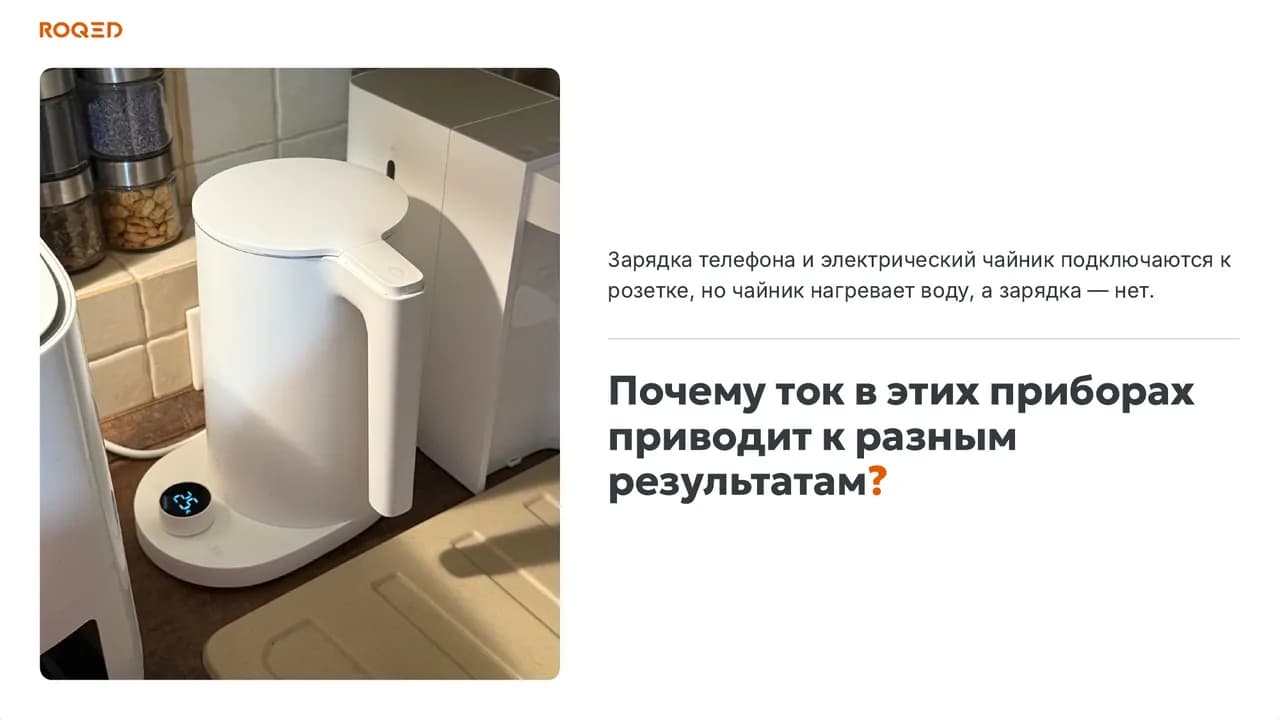
- 2Почему ток в этих приборах приводит к разным результатам?Зарядка телефона и электрический чайник подключаются к розетке, но чайник нагревает воду, а зарядка — нет.
About the presentation maker
How it works
You can make lesson slides online with ROQED AI: describe the lesson in your own words and pick the subject and grade, and AI suggests an outline, builds slides with speaker notes and gives you a .pptx file; your first deck is free. You adjust the outline and choose a template before the slides are built, and the finished deck downloads as PPTX or PDF.
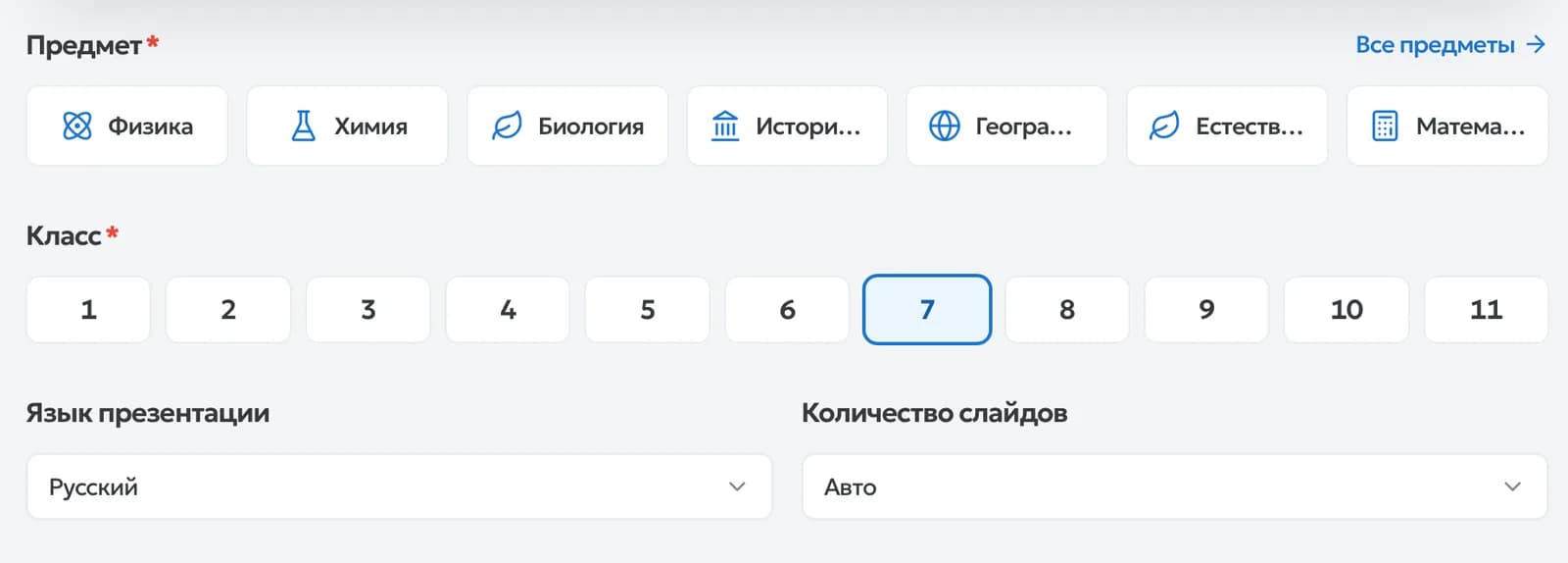
- 1Describe the lessonWrite the topic in your own words and choose the subject, grade, stream and language of instruction. Attach extra documents if you like.
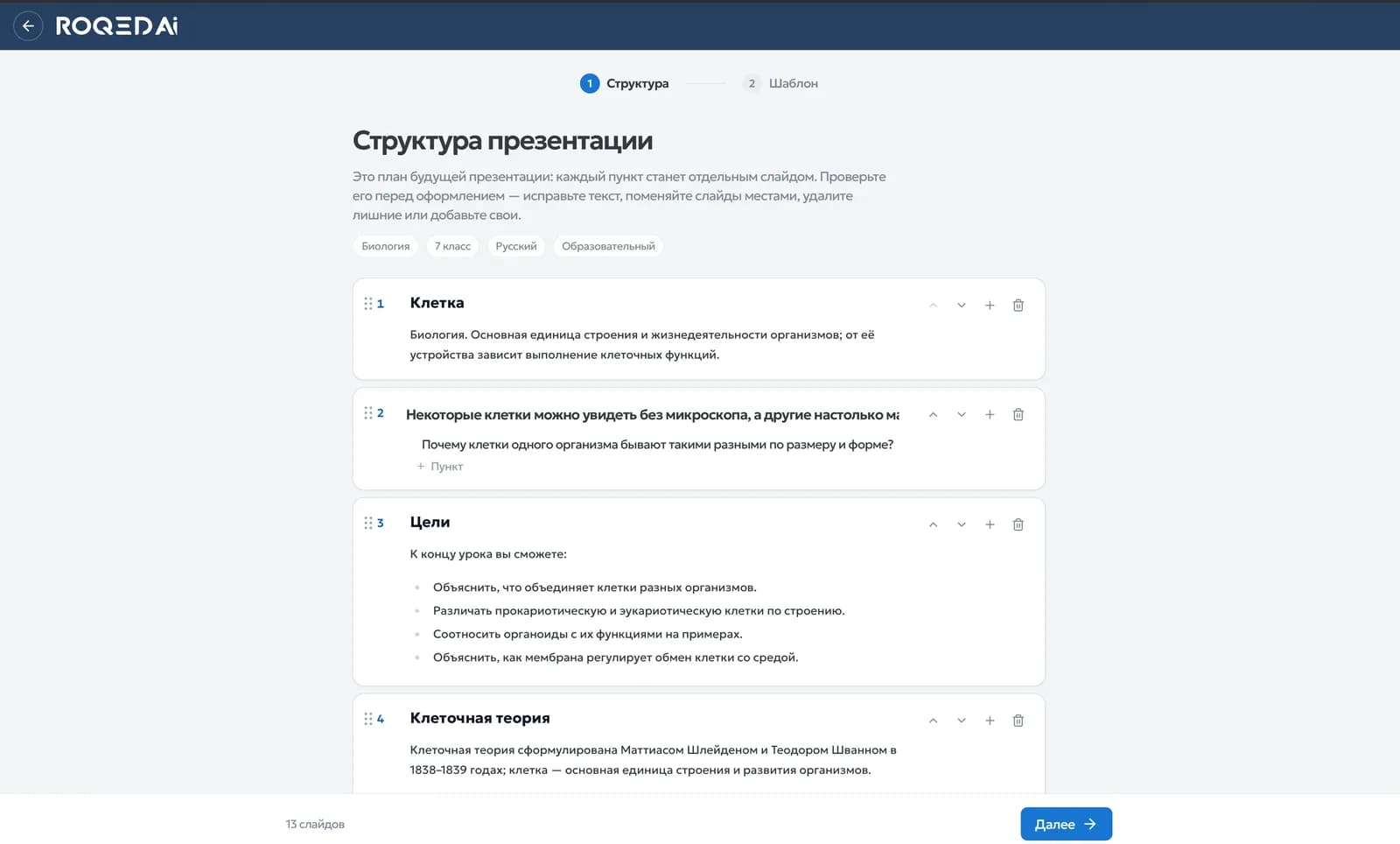
- 2Adjust the outlineThe AI suggests a slide plan: edit the text, reorder, delete or add slides. Then pick a template.
- 3Edit and exportReview the slides in the editor and regenerate any you want. Present straight from the platform or download as PPTX or PDF.
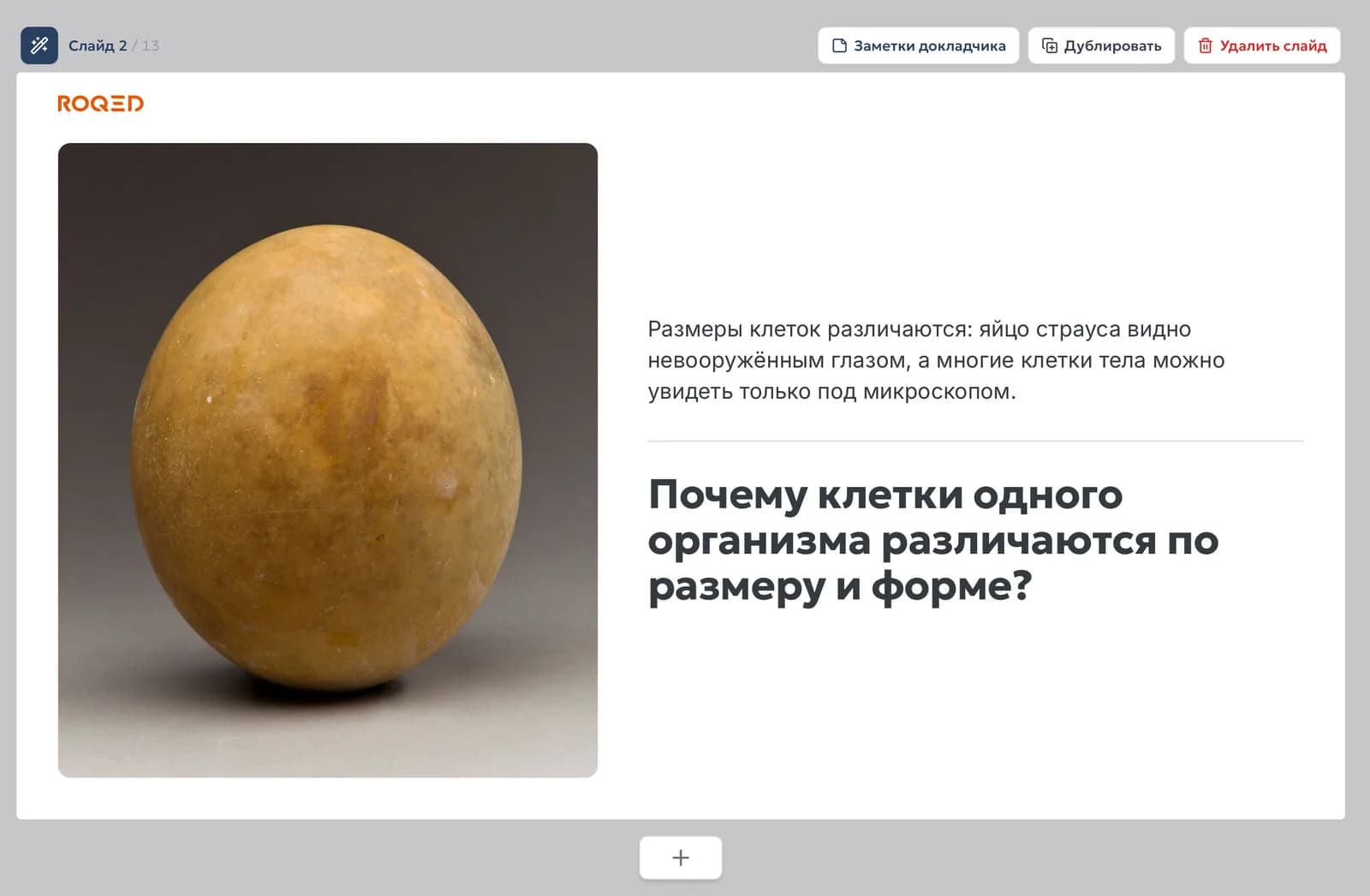
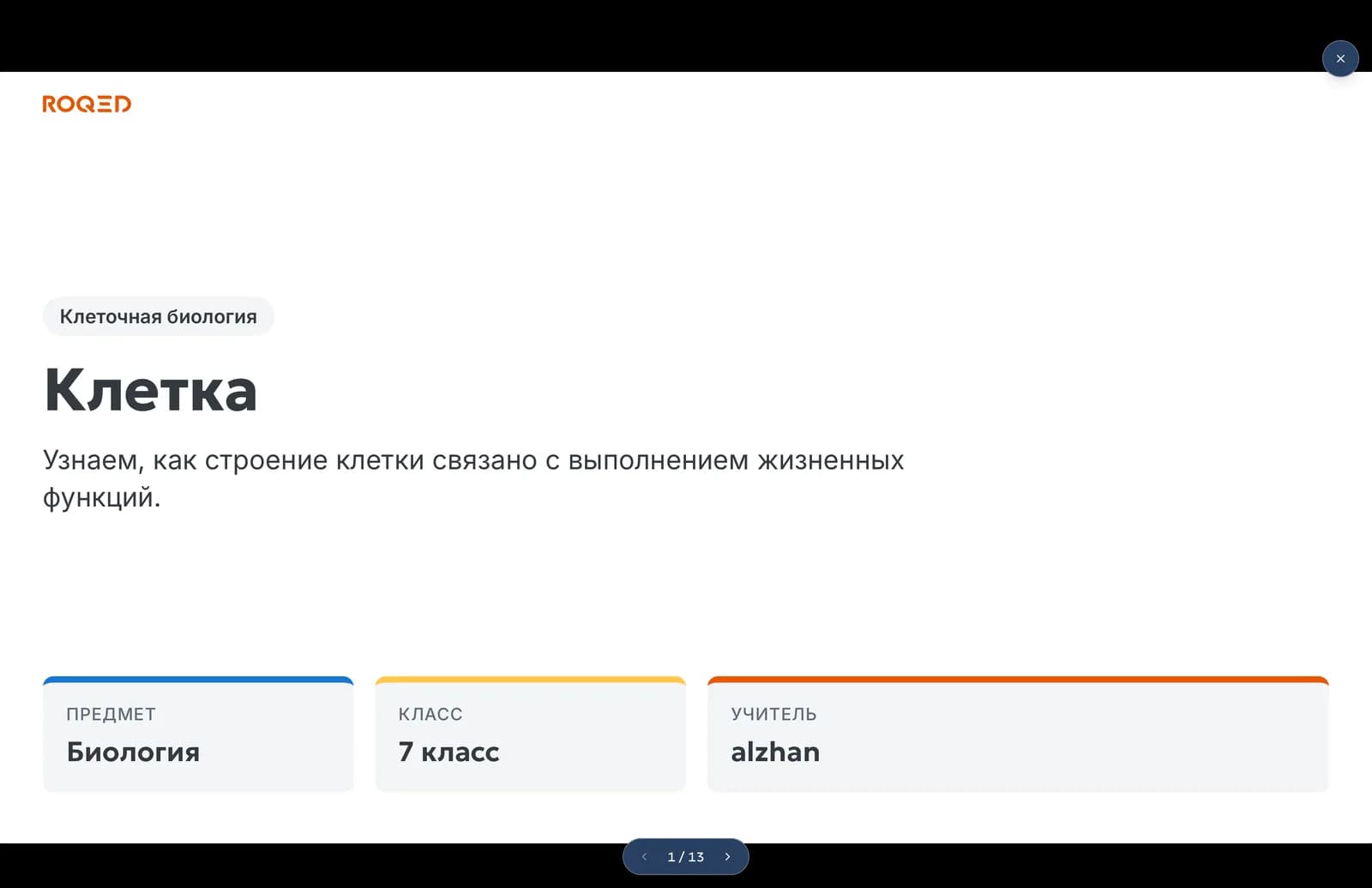
What the finished presentation contains
- An outline built around your lesson topic — edit it before generation
- Lesson flow: hook question, objectives, content with checks, summary
- Slides with ready content based on the textbook material
- A design template of your choice
- Speaker notes for every slide — what to say in class
- Export to PPTX and PDF, saved to My resources
- The whole deck in the class's language of instruction
Download the presentation as PPTX or PDF, or show it in presentation mode on the platform. Available in Kazakh, Russian and English.
A presentation built like a lesson: from a question to a summary
Many AI presentation makers return a list of slides by sub-topic. ROQED AI builds the deck in lesson order, and that order is enforced in code rather than left to the model:
- Cover: the lesson topic and one sentence on what the class will find out.
- Hook slide: a fact or a familiar situation and one open question with no answer yet.
- Objectives: "By the end of this lesson you will be able to…" and 3–4 checkable skills.
- Content: at least 40% of the slides, one idea per slide, with check questions in between.
- Summary: recall questions, including the hook question, now with an answer.
A question at the start, checks along the way, the answer at the end
A lesson holds when the class has a question it wants answered. So the second slide is not a lesson plan but a setup and the question that grows out of it. In the speaker notes for that slide the teacher sees the answer the class will reach by the end.
Check questions sit between the content slides, and two checks never come in a row. On the summary slide the hook question returns, and now the class can answer it. You see and edit the outline before the slides are built, so any step can be moved or dropped to fit your lesson.
This order follows the method experienced teachers use: first spark interest, then promise a result, then teach while checking understanding along the way, and close with the question you opened with. Even if you reorder slides, the class keeps a clear line through the lesson. For younger classes the objectives and questions are written more simply, in words a child of that age uses, while the slide order stays the same.
How to prepare a lesson presentation in a few steps
Generation takes a few minutes, but the teacher stays the author of the lesson. Working with a deck in ROQED AI goes like this:
- Describe the lesson in your own words and choose the subject, grade, stream and language of instruction. Attach your own materials to the form if you have them.
- Review the suggested outline: the hook, objectives, content slides and summary are already in place. Reword, reorder or delete slides and add your own.
- Pick a design template and the slides are built in it.
- Go through the slides in the editor and regenerate any that don't fit. Check the speaker notes: they tell you what to say on each slide.
- Teach straight from the platform in presentation mode or download the deck as PPTX and PDF. It is saved to My resources.
Speaker notes and the language of instruction
ROQED AI writes speaker notes for every slide: what to explain, which example to give, which answer to lead the class to. The slide text stays short and complete, and the detail for the teacher goes into the notes, so slides are not overloaded.
The whole deck, slides and notes, is created in the class's language of instruction: Kazakh, Russian or English. The content is based on the school textbook for the subject, not on random sources from the internet.
Ready presentations by teachers
Publications on ai.roqed.com. Open any of them to see what a finished presentation looks like.
Frequently asked questions
Which slides will the presentation have?
Every deck is built as a lesson: a cover, a hook slide with a question, a lesson objectives slide, content slides with check questions and a summary slide. The code enforces this order, not just the model, so every deck has it.
What is a hook slide?
It is the second slide: a short setup (a fact, a number or a familiar situation) and one open question the class can't answer yet. The answer is what the lesson teaches, and the question comes back on the summary slide.
How are the lesson objectives written?
The objectives slide opens with "By the end of this lesson you will be able to…" and lists 3–4 skills the teacher can check: name, explain, compare, find on a diagram. For primary grades they are written more simply, in a child's words.
What goes into the speaker notes?
Prompts for the teacher on every slide: what to explain, which example to give and which answer to lead the class to. On the hook slide the notes give the answer the class will reach by the end of the lesson.
What formats can I download the presentation in?
PPTX and PDF. The PPTX file opens in PowerPoint for further editing. You can also teach straight from the platform in presentation mode.
Can I change the finished slides?
Yes. Before generation you edit the outline: add, delete and reorder slides. In the finished deck any slide can be edited in the editor or regenerated.
Can I choose the slide design?
Yes. After editing the outline you pick a design template and the slides are built in it. You can keep editing the finished deck in the editor or in PowerPoint.
Can I add my own materials?
Yes, you can attach extra documents to the form — the AI takes them into account when building the slides.
What language will the presentation be in?
Kazakh, Russian or English — you choose the language of instruction in the form, and the slides and speaker notes follow it.
Build a presentation for your next lesson
50 crystals when you sign up. Your starting balance is valid for 30 days.
Updated: